

Web Hosting
WordPress Security Updates in 2026: A Safe Update Checklist
Use a backup, compatibility checks, staged testing and post-update verification to apply WordPress security updates without guessing.
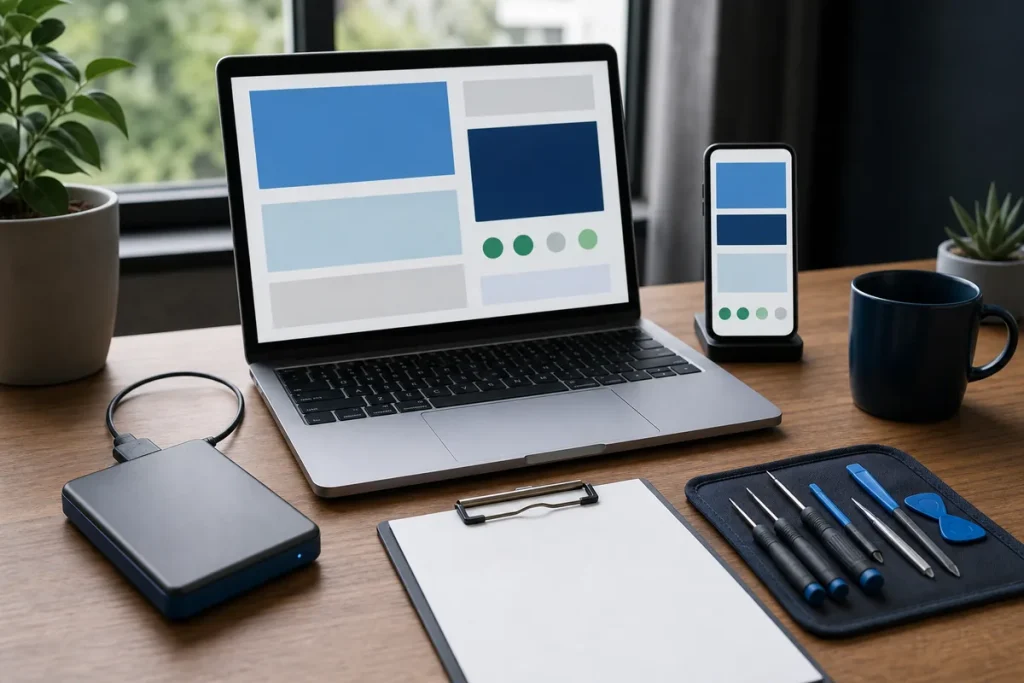
WordPress updates are maintenance, not a button-clicking contest. In July and August 2026, WordPress published several security and maintenance releases, followed by WordPress 7.1 on 19 August. The lesson is not that every site should jump versions blindly; it is that every site needs an owned update and recovery process.
1. Know What Is Actually Running
Record the WordPress core version, active theme, plugins, PHP version and hosting constraints. Remove software that is genuinely unused only after confirming it has no operational role. An abandoned plugin can be a risk even when it is disabled, while a heavily customised plugin may require testing before replacement.
2. Read the Release Type and Source
Use WordPress.org and the original vendor’s advisory to understand whether an update is security, maintenance or feature-related. Security releases usually justify faster action. Major releases can contain broader editor, media and developer changes and deserve compatibility testing, especially on ecommerce or highly customised sites.
3. Create a Restore Point You Can Use
- Back up the database and application files, including uploads and configuration.
- Store a copy away from the live application.
- Record checksums and test that archives and database dumps open correctly.
- Write the rollback steps and identify who can perform them.
A backup notification is not enough. Confirm what the job included and whether the retention period covers the time in which a problem might be discovered.
4. Test the Change in Context
Use staging for major core, PHP, theme or high-impact plugin changes. Protect staging from public indexing and avoid sending real email, payments or customer notifications. Test with representative content and workflows rather than only checking the home page.
5. Update in a Controlled Order
The exact order depends on the site, but change one logical layer at a time when risk is high. Keep the maintenance window short, avoid unrelated design edits and record versions before and after. Do not overwrite custom code with a generic package unless its deployment source is understood.
6. Clear Caches and Verify Real Workflows
- Open the public canonical URL without a cache-busting query.
- Check administrator login and editor access.
- Submit important forms and confirm delivery.
- Test search, navigation and mobile layouts.
- For ecommerce, test cart, checkout and payment hand-off without exposing card data.
- Review browser console, PHP logs, scheduled jobs and security monitoring.
7. Roll Back Deliberately if Needed
If a critical workflow fails, stop making extra changes. Capture the error, decide whether a small forward fix is safer, and use the documented restore point when rollback is warranted. Restoring only files when the database schema also changed can leave a mismatched site, so follow the release-specific plan.
What Site Owners Should Ask a Host or Developer
- Who monitors security releases?
- Where are backups stored and when was a restore last tested?
- Which workflows are checked after updates?
- How quickly can the site be rolled back?
- What happens when a plugin is abandoned?
Practical note: As of 15 September 2026, WordPress.org lists 7.1 as the latest major release. The correct target for a particular site still depends on supported update paths, compatibility and current security advisories.
Sources & Further Reading
- WordPress.org: WordPress 7.1 “Mary Lou”
- WordPress.org: WordPress 7.0.2 Security Release
- WordPress Documentation: Updating WordPress
This is general maintenance guidance. A production update plan should reflect the site’s code, data, integrations, hosting and recovery objectives.