

Remote Support
Remote IT Support vs On-site Support: Which Fits the Problem?
Remote help is fast for software and accounts; on-site help is necessary for physical faults, cabling and hands-on installation.
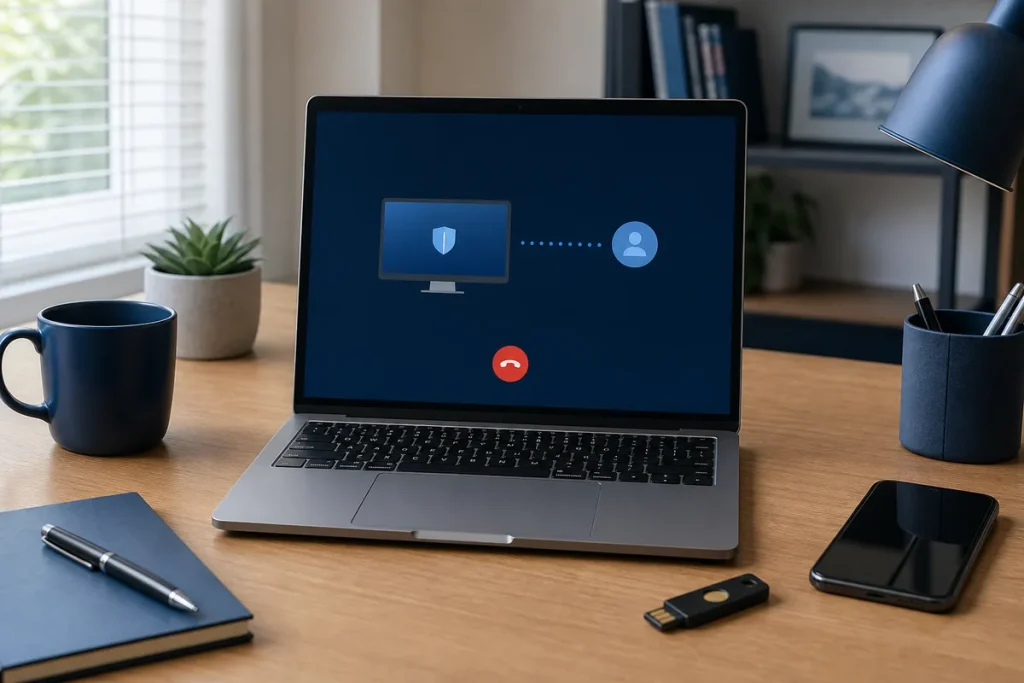
The quickest support method is the one that can actually reach the fault. Remote support removes travel time and lets a technician see software behaviour directly. On-site support adds hands, tools and access to the equipment or cabling. Most customers do not need to choose a permanent side: the problem should decide the delivery method.
Problems That Often Suit Remote Help
- Email, account and sign-in issues.
- Application settings and many software errors.
- Printer setup when the printer and network are already functioning.
- Operating-system guidance and routine configuration.
- Cloud storage, permissions and synchronisation checks.
- Initial diagnosis before parts or a visit are arranged.
The device must still start, connect reliably and allow the customer to approve the session. Some actions—particularly protected credential prompts—may need the customer to type locally even while a technician guides them.
Problems That Usually Need Someone On-site
- A computer, router, switch or printer has no power.
- Hardware must be installed, opened, replaced or tested.
- Network cabling, wall outlets or equipment racks are involved.
- Wi-Fi coverage needs measurements across the premises.
- Several devices lose connectivity because of a local infrastructure fault.
- The customer cannot safely perform the physical steps.
Why Starting Remotely Can Still Help
A short remote or phone triage can gather error messages, model numbers and symptoms. If a visit is needed, the technician can arrive with more suitable parts and tools. Triage should not become an endless attempt to solve a clearly physical fault through screen sharing.
Keep Remote Sessions Safe
Only allow access after you contacted the provider through a known channel and understand the task. Microsoft’s Quick Assist guidance says remote helpers may see the screen or control the PC when permission is granted, and that access should be given only to people you trust. Scamwatch warns against unexpected callers who claim there is a problem and ask you to install remote-control software.
- Confirm the business, technician and purpose.
- Close unrelated documents, banking and password-manager windows.
- Stay present and watch the work.
- Do not read out passwords or one-time codes.
- End the session when the agreed task is complete.
Choose by Outcome and Total Effort
Remote help is not automatically better because it is faster to begin, and on-site help is not automatically better because someone is in the room. Consider whether the technician can observe and change the relevant system, whether physical testing is needed, how much customer participation is required and what happens if the first method cannot finish the job.
A Simple Rule
If the issue is mainly visible on a working screen, begin with trusted remote help. If the issue is in the room, cable, component or power path, arrange on-site service. If you are not sure, describe the exact symptoms and let triage establish the boundary before time is booked.
Practical note: Disconnect immediately if an unexpected caller requests remote access, banking activity, gift cards, cryptocurrency, account recovery codes or secrecy.
Sources & Further Reading
- Microsoft Support: Solve PC Problems Remotely With Quick Assist
- Scamwatch: Hang Up on Remote Access Scammers
This guide is general information. Access, pricing, coverage and the appropriate support method depend on the fault, device and location.