

Computer Repairs
Windows 10 Support Has Ended: Upgrade, Repair or Replace?
Windows 10 still starts, but normal support has ended. Use this checklist to choose an upgrade, repair, replacement or temporary ESU path.
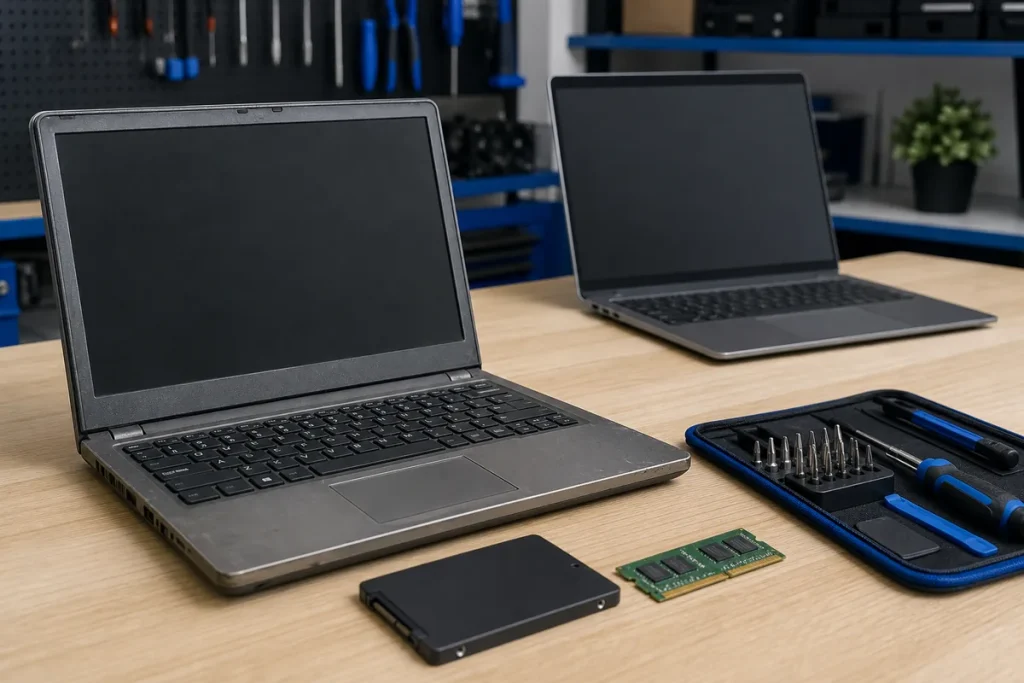
Windows 10 did not stop working when standard support ended, but the decision can no longer be put off indefinitely. Microsoft ended normal Windows 10 support on 14 October 2025, which means the operating system no longer receives the usual free security and feature updates or normal technical support.
Option 1: Upgrade the Existing PC to Windows 11
This is usually the cleanest option when the computer is compatible, reliable and still fast enough for its owner. Microsoft lists requirements including a supported processor, at least 4 GB of memory, 64 GB of storage, DirectX 12 graphics and the relevant firmware security features. Meeting the minimum does not guarantee that an older computer will feel good for the next few years, so condition matters as much as the checklist.
Before upgrading, check free storage, drive health, backups, printers and business applications. An in-place upgrade may retain files and programs, but a verified backup remains essential because power loss, storage faults or incompatible software can still interrupt the process.
Option 2: Repair or Upgrade Hardware First
Windows 10 end of support and a slow or faulty computer are separate problems. Replacing a failing drive, adding memory or servicing cooling may make a compatible PC worth keeping. Hardware work cannot make an unsupported processor officially supported, however, and bypassing Windows 11 checks can create an unreliable or unsupported result.
A sensible assessment separates three questions:
- Is the hardware healthy enough to trust?
- Is the model officially compatible with Windows 11?
- Will the programs and peripherals you rely on work after the change?
Option 3: Replace and Transfer
Replacement often makes more sense when several components are ageing, the battery and storage are both poor, or essential software needs newer hardware. Include data transfer, email setup, licensing, printers and secure disposal in the comparison—not just the shelf price of a new computer.
Do not dispose of the old PC until the new one has been checked and the transfer verified. When it is time to retire the device, erase its storage using a method appropriate to the drive and the sensitivity of the information.
What About Extended Security Updates?
Microsoft offers a Consumer Extended Security Updates pathway for eligible Windows 10 PCs through 12 October 2027. It is a temporary security bridge, not a full return to normal Windows 10 support, and eligibility and enrolment terms can change. Businesses should check the licensing and support path that applies to their edition rather than assuming the consumer arrangement covers them.
A Practical Decision Rule
- Upgrade: compatible, healthy hardware with supported applications.
- Repair then upgrade: one worthwhile hardware fault on an otherwise suitable PC.
- Use ESU temporarily: a documented transition needs more time and the device is eligible.
- Replace: unsupported hardware, repeated faults or a poor total-value case.
Practical note: Do not accept Windows upgrade help from an unsolicited caller, pop-up or email. Start with Microsoft’s official information or a provider you contacted through a known channel.
Sources & Further Reading
- Microsoft Support: Windows 10 Support Has Ended
- Microsoft Support: Windows 11 System Requirements
- Australian Cyber Security Centre: End of Support for Microsoft Windows
Compatibility, licensing and repair value depend on the exact computer and software. A diagnostic assessment is the right next step when the device has faults or the upgrade checker gives an unclear result.