

Tablet Repairs
Tablet Not Charging? Cable, Port, Battery or Software?
Work through safe checks to tell whether a tablet charging problem points to the cable, adaptor, port, battery, temperature or software.
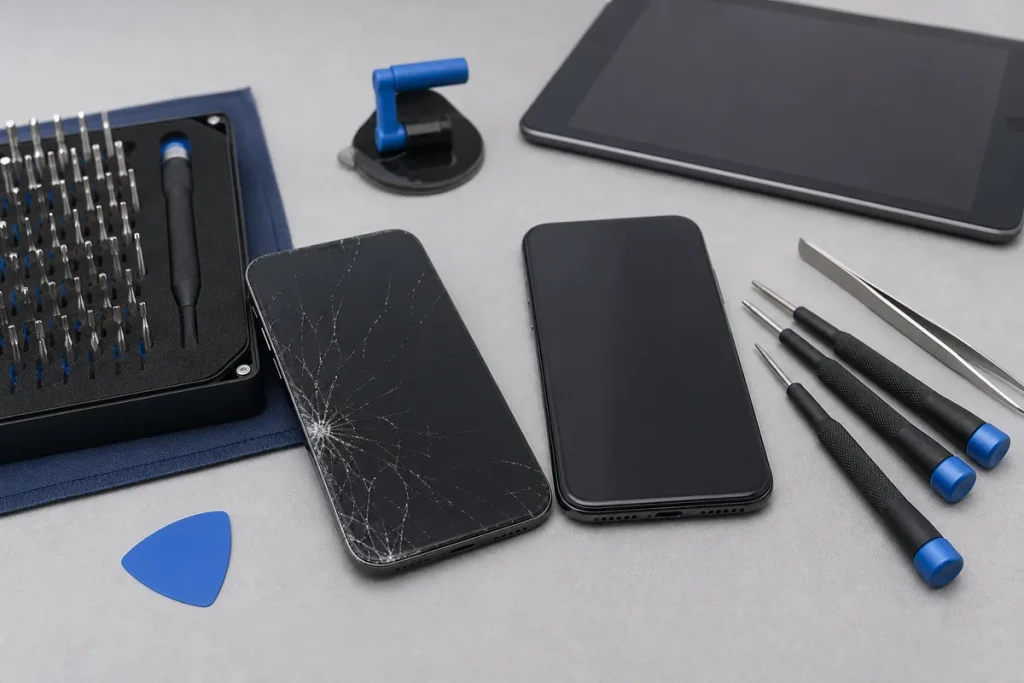
A tablet that will not charge does not automatically need a new battery or charging port. The same symptom can come from the cable, adaptor, power source, debris, temperature, software or internal hardware. Testing in a controlled order prevents unnecessary parts and reduces the risk of making a damaged port worse.
1. Rule Out the Power Source
- Use a wall socket rather than a low-power USB port on a computer.
- Try a known-good cable and a compatible power adaptor.
- Check the cable and adaptor for bent pins, cracks, exposed wire or heat damage.
- Leave a deeply discharged tablet connected for a while before repeatedly pressing the power button.
USB-C connectors can look identical while supporting different power levels. Use a reputable, correctly rated accessory for the tablet rather than choosing only by plug shape.
2. Inspect the Port Without Damaging It
Turn the tablet off and look into the charging port with a light. Compacted lint can stop a plug seating fully, while corrosion, bent contacts or a loose socket point to hardware damage. Do not put metal tools or liquid into the port, and do not force the plug sideways. If the port is blocked or visibly damaged, professional cleaning or repair is safer.
3. Consider Temperature and Moisture
Many tablets slow or suspend charging when they are too hot, too cold or detect moisture. Disconnect the charger, move the device to a dry, well-ventilated room-temperature location and allow it to return to normal. Do not use rice, ovens, hair dryers or direct heat.
4. Restart and Check Software
If the tablet still has power, restart it. Temporary software faults can affect charging indicators or power management. Install normal manufacturer updates only after the device is stable and backed up; an unreliable power connection is a poor time to begin a major update.
Samsung’s Members app can run supported battery and cable-charging diagnostics on many Galaxy tablets. Apple’s guidance confirms that USB-C iPads need a compatible cable and power adaptor; higher-wattage compatible USB-C adaptors can be used on supported models.
What the Pattern Can Tell You
- Charges with one cable only: suspect the original cable or adaptor.
- Charges only at an angle: stop forcing it; debris, wear or port damage is likely.
- Shows charging but the percentage falls: the supply may be under-powered, the tablet may be drawing heavily, or the battery may be deteriorated.
- Wireless charging works but wired charging does not: focus on the cable, port and wired charging circuit.
- No response with several known-good chargers: battery, port, charging circuit or board diagnosis may be required.
Stop Using It if the Battery Looks Unsafe
A lifting screen or back cover, unusual bulge, strong smell, smoke or excessive heat can indicate a damaged battery. Disconnect power if it is safe to do so, stop using the tablet and keep it away from flammable materials. Do not press the case closed or puncture the battery.
Sources & Further Reading
This guide cannot identify an internal fault without testing. Repair options, part availability and water resistance vary by model and condition.