

Phone Repairs
Privacy Before Phone Repair: Backups, Repair Modes & Account Locks
A practical checklist for protecting your data, preparing account locks and using repair or maintenance modes before phone service.
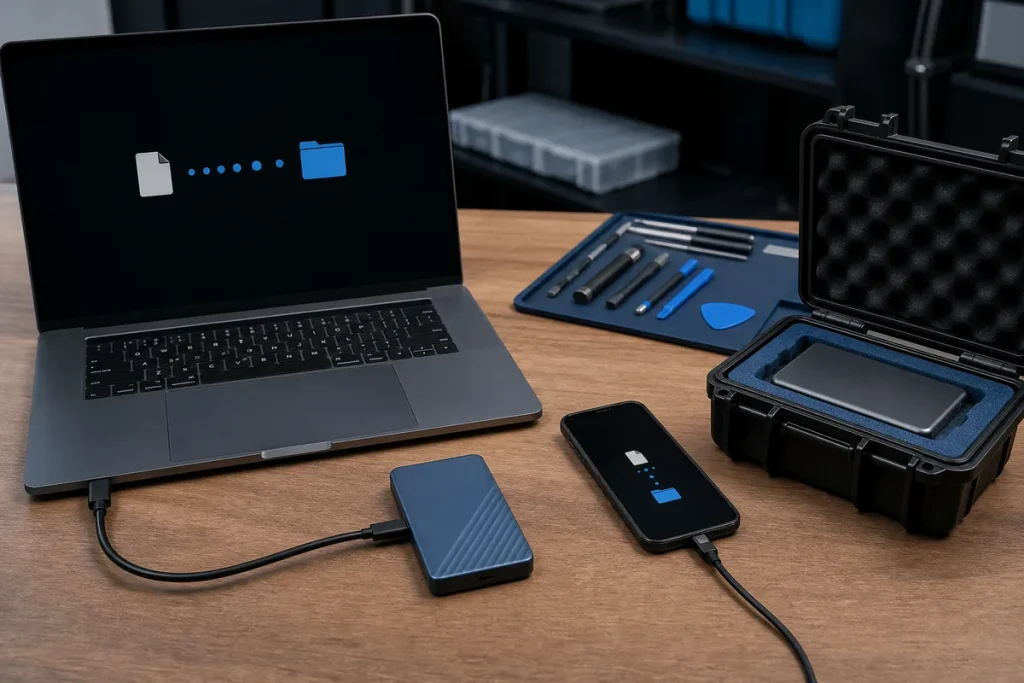
A phone repair should begin with two separate plans: one for the fault and one for the information on the device. Photos, messages, authenticator apps and saved payment methods can matter far more than the phone itself, so a few careful steps before service can reduce both privacy risk and repair delays.
Start With a Backup You Can Verify
If the phone still operates, back up the information you cannot replace. Check that recent photos, contacts and important files are actually present in the backup destination rather than assuming a sync icon means everything is complete. If the device is unstable, avoid repeatedly forcing it to run just to finish a large backup; tell the technician that data preservation is a priority.
Use Repair or Maintenance Mode Where Supported
Some recent Android phones provide a restricted environment for servicing. Google Pixel Repair Mode and Samsung Maintenance Mode are designed to limit access to personal information while still allowing technicians to run supported checks. Availability depends on the model, storage space and software version, and neither mode replaces a current backup.
Apple’s current preparation guidance focuses on backing up, removing cards and passes where appropriate, checking Parts and Service History, and managing Find My before service. Apple also says not to give anyone your Apple Account password, device passcode or account security details. If a diagnostic step needs you to unlock the phone or enter credentials, ask why and enter them yourself where practical.
Prepare Account and Activation Locks
- Find My and activation locks: confirm whether they must be disabled for the specific repair. Do not remove security controls merely because an unsolicited message asks you to.
- SIM and eSIM: ask whether the repair needs an active service. Remove a physical SIM when it is not required.
- Payment cards and passes: remove them when the manufacturer recommends it or when the repair may involve replacement or erasure.
- Passwords and codes: never give a technician your email, banking or Apple/Google account password, recovery code or one-time authentication code.
Agree on the Testing Boundary
A screen, camera, microphone or mobile-data repair may need functional testing after parts are fitted. Ask what will be tested, whether the device may be erased and whether a temporary test account or repair mode can be used. A clear scope is safer than handing over broad access without understanding the reason.
If the phone cannot be backed up, say so at check-in. Hardware repair and data recovery are different jobs, and no repair process can guarantee data will survive a failing storage device, liquid damage or a required reset.
When the Phone Comes Back
- Check the repaired function before restoring everything.
- Exit repair or maintenance mode and confirm your normal lock works.
- Re-enable Find My or equivalent protection if it was disabled.
- Review installed apps, account alerts and payment cards.
- Keep the repair record and note any warranty conditions.
Practical note: If the phone is unusually hot, swollen, smoking or has a strong chemical smell, stop charging and using it. Keep it away from flammable material and arrange a professional assessment.
Sources & Further Reading
- Apple Support: Prepare Your iPhone or iPad for Service
- Google Pixel Help: Repair Mode
- Samsung Australia: Maintenance Mode
This guide is general information. Available privacy features and repair requirements vary by device, condition and manufacturer. Confirm the proposed work and data-handling steps for your particular phone before service.